Hanna T
19 Oct 2026
Is there a free AI note taker for meetings?
Meeting Productivity


The best AI meeting assistant for a team whose meetings span several languages is one that follows a change of language in the middle of a meeting without asking you to set one language in advance, and that lets you check live translation and the written record as separate features. Digiotouch AI detects the language automatically in the transcript, including changes during the meeting, and transcribes in more than 130 languages: you get a summary and action items on every plan, and the full transcript from Essential. During the call, the desktop app adds live captions and, from Essential, live translation, but there you choose the spoken language and the target language yourself, because automatic detection applies to the transcript only. After the meeting, on every plan, the summary can be translated into any of more than 130 languages, so each colleague can read the same decisions in their own language.
Joonas is an operations manager at a logistics company with teams in Tallinn, Lyon and Milan. His weekly planning call starts in English, moves to French when the Lyon team discusses a supplier, and ends with two colleagues settling a detail in Italian. The written notes cover the English part only. Every week, someone asks what was decided in the other two languages.
Mixed-language meetings are normal in European teams. According to the European Commission's page on Europeans' language skills, 59% of Europeans can hold a conversation in at least one foreign language and 28% in at least two, based on the 2024 Eurobarometer survey. People who can change language do change, often in the middle of a discussion.
Speech recognition finds this hard. A review of code-switching in automatic speech recognition, published in the journal Applied Sciences in 2022, describes speech that mixes languages as an unsolved problem: recognition accuracy drops when the language changes. A literature review from 2025 adds that a change of language inside a single sentence is the most difficult case.
For the team, the effect is simple. If a tool expects one language for the whole meeting, the parts spoken in another language may come out with errors, and the summary is built on what is left.
Look for five separate capabilities, and check each one on its own. It is easy to group them under one phrase such as "multilingual support", but they are different features. They work at different moments, and they are not always on the same app or the same plan.
This is how the five are split in Digiotouch AI.
| Capability | When | Where it works | Who chooses the language | Plan |
|---|---|---|---|---|
| Transcript | After the meeting | All apps, and imported files | Detected automatically, including changes during the meeting | From Essential |
| Automatic language detection | After the meeting | In the transcript only | Automatic. Not available for live captions or live translation | With the transcript |
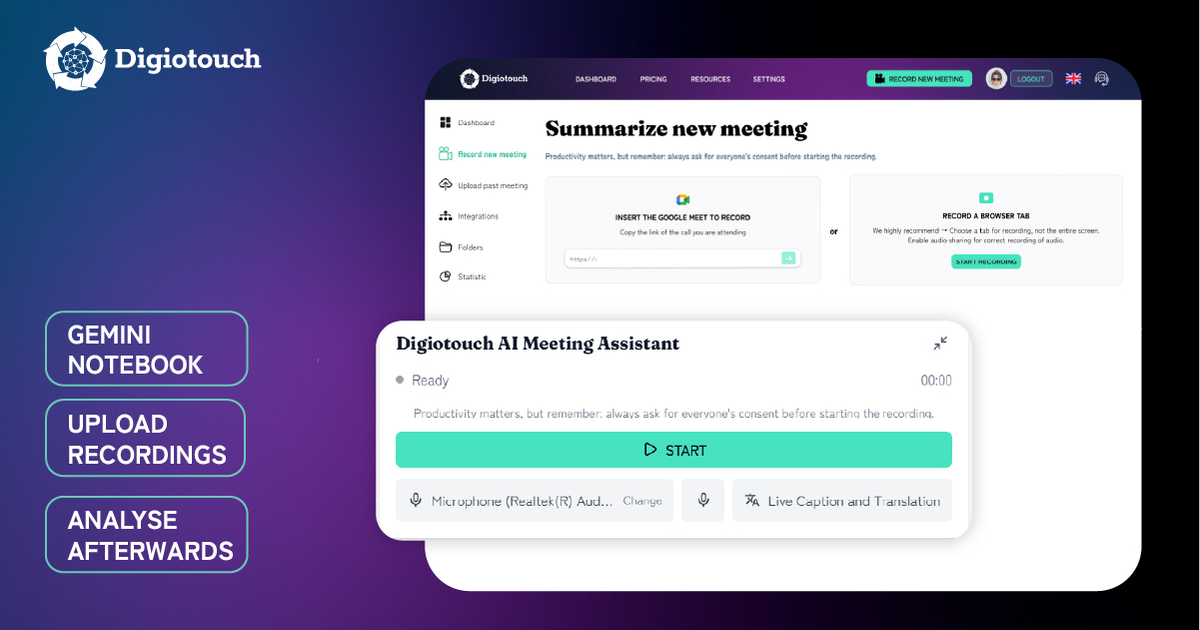
| Live captions | During the meeting | Desktop app only | You choose the spoken language before starting | Every plan |
| Live translation | During the meeting | Desktop app only | You choose the spoken and target languages, and you can change them during the session | From Essential, with a monthly allowance |
| Summary translation | After the meeting has been processed | All apps | You choose any of more than 130 languages | Every plan |
Four questions to ask any vendor before you choose:
Whether your own language is supported is a different question. For Swedish, Finnish, Estonian, Latvian and Lithuanian, see Which AI note takers work in Swedish, Finnish, Estonian, Latvian and Lithuanian?
How Digiotouch AI handles this: the five capabilities exist and are kept separate. The transcript, with automatic language detection, is produced after the meeting on all apps. Live captions and live translation work during the meeting on the desktop app for Windows and Mac. Summary translation works on all apps once the meeting has been processed.
It depends on which capability you are looking at.
In the transcript, you have nothing to do. The language is detected automatically, and a change of language during the meeting is followed. In Joonas's call, the English, French and Italian parts all appear in the transcript.
In live captions and live translation, the language is not detected. You choose the spoken language before you start. When the discussion moves to another language, you change the spoken language yourself, and the same applies to the target language of the translation. Until you change it, the captions are still set to the first language. This is the real limit of live features in a mixed-language meeting.
A practical rule: use live translation for the colleague who needs to follow the call now, and rely on the transcript and the summary for the record.
How Digiotouch AI handles this: automatic language detection applies to the transcript, after the meeting, and it follows changes of language. For live captions and live translation on the desktop app, you choose the languages before starting and you can change them during the session.
Yes, but they are two features that work at two moments.
Live captions show the words on your screen during the call. In Digiotouch AI they exist on the desktop app. They stay in memory and are never written to disk, so when the call ends, the captions are gone.
The summary is produced after the meeting, from the recording. It comes with action items and with the transcript.
So the captions help you follow the meeting, and the summary is what you keep. If your team needs both, check that the tool does both, and check where. In Digiotouch AI, live captions need the desktop app, while the summary is produced on every app.
How Digiotouch AI handles this: live captions during the call on the desktop app, then a summary and action items after the meeting on every plan. The captions are not saved: the written record comes from the recording, once it has been processed.
Live translation shows the speech in another language while people are talking. In Digiotouch AI:
For an in-person meeting recorded with the mobile app, there is no live translation. You get the summary after the meeting, and you can translate it then. The guide to the desktop, mobile and web apps shows which app fits which meeting.
How Digiotouch AI handles this: live translation on the desktop app, from Essential, with the languages you choose. After any meeting, on any app, the summary can be translated into any of more than 130 languages, section by section.
Ten minutes with two colleagues is enough.
The transcript and live translation are not on the Free plan. Run this test during the 14-day trial of Essential or Professional, which asks for a payment card.
Record one mixed-language call this week and run the five checks above. You will know within ten minutes whether the transcript, the live features and the translated summary work for your languages.
Choose one that follows a change of language during the meeting and that treats the transcript, live captions, live translation and summary translation as separate features. Digiotouch AI detects the language automatically in the transcript, including changes during the meeting, and transcribes in more than 130 languages. Live captions and, from the Essential plan, live translation are on the desktop app, with languages that you choose yourself.
In Digiotouch AI, the transcript follows it: the language is detected automatically after the meeting, including changes during the meeting. Live captions and live translation do not detect the language. You choose the languages before starting and you change them yourself during the session.
Yes. The desktop app shows live captions during the call, and every app produces a summary and action items after the meeting. The captions are not saved, so the written record comes from the recording once it has been processed.
No. In Digiotouch AI, live captions and live translation work on the desktop app for Windows and Mac only, and live translation starts from the Essential plan. On mobile and in the browser, you get the summary after the meeting and you can translate it into any of more than 130 languages.
The app interface exists in four languages: English, French, Japanese and Estonian. The figure of more than 130 languages concerns the content of your meetings, not the interface. Plans are listed on digiotouch.ai/en/pricing.
Yes, on every plan. After the meeting has been processed, Digiotouch AI can translate the summary into any of more than 130 languages, section by section. This works on the desktop, mobile and web apps.
Yes. On the desktop app, you choose the spoken language before starting, and you can change it during the session when the speakers move to another language. The same applies to the target language of live translation, which starts from the Essential plan.